An image-to-video prompt has one job: say what moves. The photo already sets the subject, the framing and the light, so the text should name one motion, say what holds still, and leave the rest to the image. The 15 image-to-video prompts below animate one example photo and are grouped by what they move: the subject, the camera or the environment. Change one clause at a time and you’ll know which instruction caused which result. Every prompt runs as written in ChatCut’s Video Gen with any model that accepts a First Frame; video generation needs a paid plan and uses credits.
We wrote these prompts for this guide and haven’t published outputs for them. The demo clips on this page come from ChatCut Skills and are labeled that way.
Key Takeaways
- Describe the motion, not the picture. Refer to things in the photo in general terms (“the person”, “the mug”) and spend the words on what moves, which way and how fast.
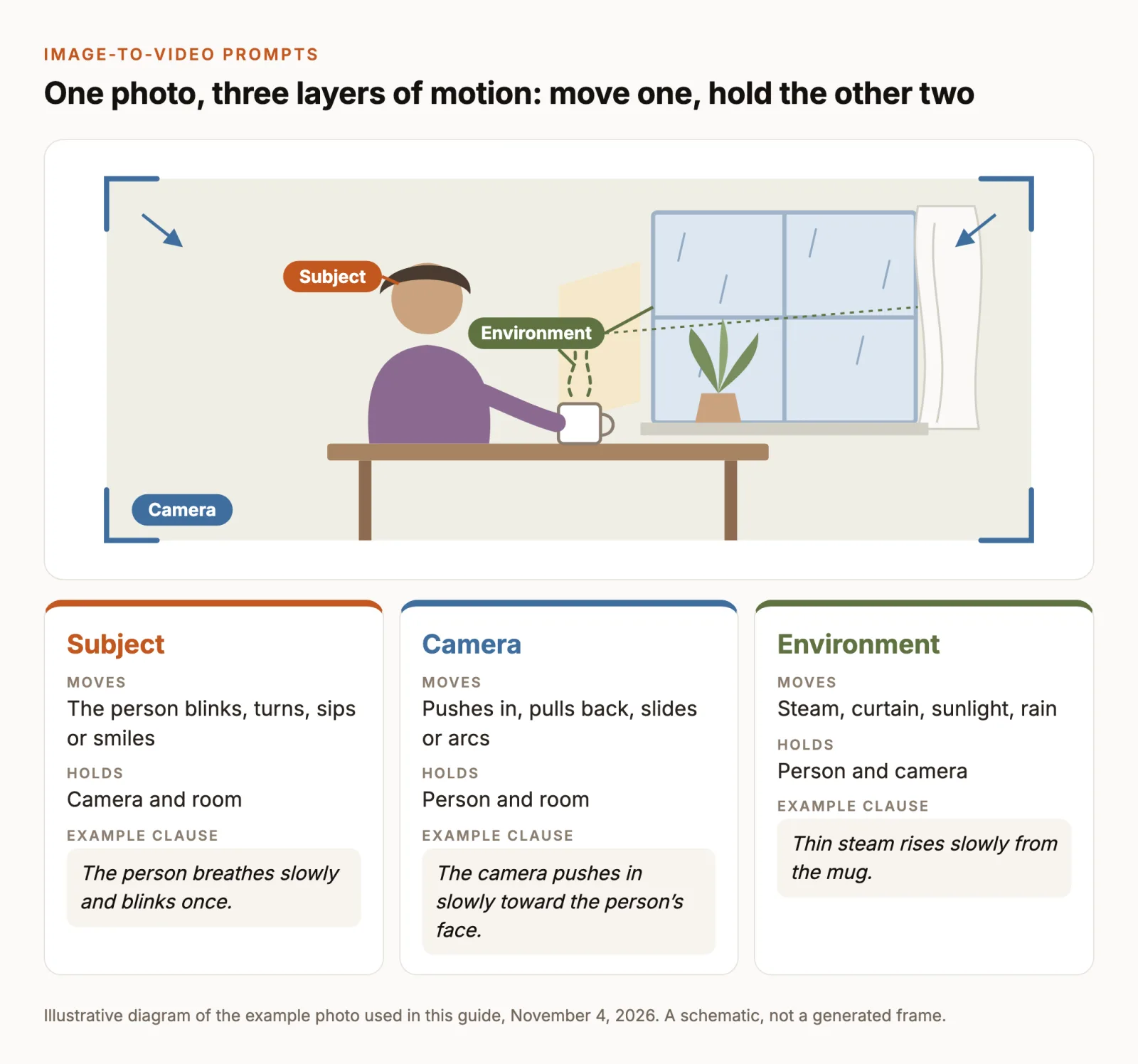
- Move one layer at a time: the subject, the camera or the environment. Say explicitly that the other two hold still.
- Keep everything else fixed while you compare: same photo, same model, same duration and resolution. Then the only difference between two clips is the clause you changed.
- Anything the camera reveals beyond the photo’s edges has to be invented. Push-ins are safer than pull-backs and orbits.
Write the motion, not the picture
In text-to-video, the prompt has to describe everything: subject, setting, light, style and motion. Our AI video prompts guide covers that job. With a photo as the first frame, most of that is already decided. Runway’s image-to-video prompting guide puts it plainly: focus the prompt on motion, and refer to subjects in general terms so the model knows which element to animate. Describing the image again adds nothing the model can’t see, and it competes with the one instruction that matters.
A useful image-to-video prompt has four parts:
- Keep. What must not change: “Keep the person’s face and clothing the same as in the first frame.”
- Move. One motion with a subject, a verb, a direction and a speed: “The curtain sways gently to the left.”
- Hold. What stays still: “The person and the camera stay still.”
- Sound. Seedance and Kling models generate audio with every clip, so say what should be heard.
Two things in the photo itself can work against the prompt. The first is implied motion: Runway’s guide notes that motion blur, a mid-stride pose or strong directional lines suggest a movement, and a prompt asking for a different one may need more attempts. The second is the frame edge. When the camera pulls back or moves sideways, everything that comes into view was never in the photo, so the model has to make it up.
The example photo and the fixed settings
The examples use one ordinary photo: a medium-wide shot of an adult sitting at a table by a window, a plain mug in front of them, a potted plant on the sill and a sheer curtain to one side. It has something for each layer: a person who can move, a camera that can move around them, and steam, fabric and light that can move on their own. If your photo is different, keep the structure and swap the nouns.
Every prompt starts with the same keep sentence and ends with the same shot and sound sentences. Only the middle clause changes. Keep the settings fixed too: one model, 5 seconds, one resolution, and the aspect ratio that follows the photo. Then put the clips side by side on the timeline and compare each one with the photo.
Subject motion: the person moves, nothing else
Start here with portraits. Small movements change less of the face, so begin with the smallest and build up.
1. Breathe and blink
Check: the eyes close and open once, and nothing else drifts. This is the baseline the other clips are compared with.
2. Turn toward the light
Check: the face at the end of the turn is still the same person. A turn shows parts of the face the photo doesn’t, so keep it small.
3. Lift the mug
Check: hands and fingers stay whole, and the mug keeps its shape. Hands holding objects are a demanding test, so judge this one frame by frame.
4. A small smile
Check: the smile reads as the same person’s smile. If the face changes shape, ask for “a slight smile” or drop the expression change.
Camera motion: the camera moves, the scene holds
A moving camera makes a still photo feel like footage, even when nothing in the scene moves. The prompts say outright that the person and the room hold still, because nothing in a still photo tells the model which parts should stay put.
5. Slow push-in
Check: detail holds up as the frame tightens. This is the safest camera move, because it shows less of the scene, not more.
6. Slow pull-back
Check: the new edges of the frame. Every wall, chair and window that appears was invented, so make sure it fits the room in the photo.
7. Sideways slide
Check: nearer objects should pass a little faster than the far wall. That parallax is what makes the slide read as a real camera move.
8. A short arc
Check: the person’s profile and the far side of the mug. An arc shows sides the photo never did; keep it short and compare the last frame with the first.
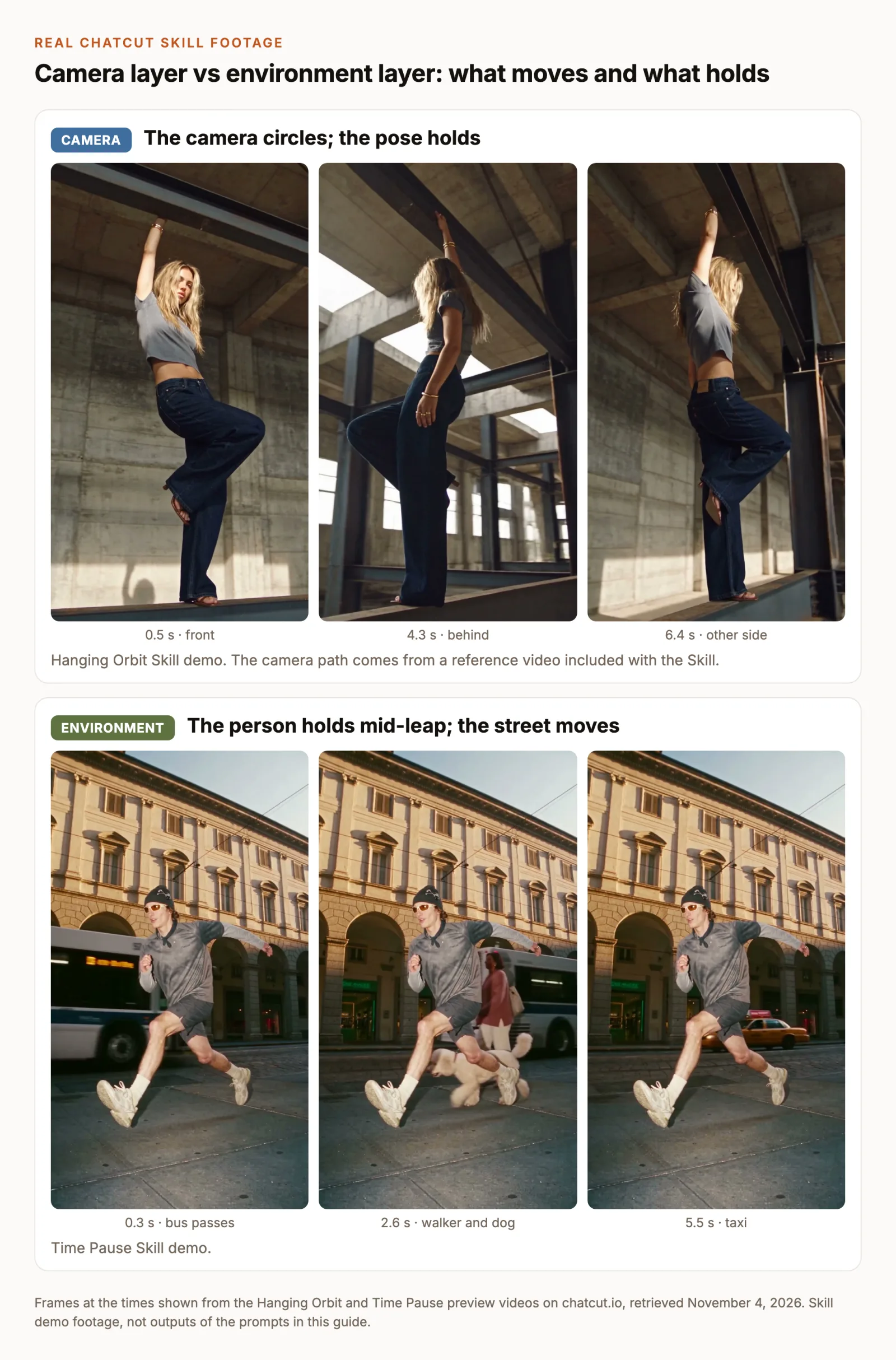
The frames below come from two ChatCut Skills that each start from one character image, and they show the difference between the camera layer and the environment layer more clearly than a description can. In the Hanging Orbit demo the camera travels around a pose that holds. In the Time Pause demo the person stays frozen mid-leap while the street keeps moving around them.
Environment motion: the room moves, the person holds
Environment motion is often the gentlest way to bring a photo to life, because the subject doesn’t have to change at all. Steam, fabric, light, water and foliage are the usual candidates.
9. Steam from the mug
Check: the steam starts at the mug and fades as it rises. If the person moves too, add “The person does not move.”
10. Curtain in a breeze
Check: the curtain moves like fabric, not like jelly. If it barely moves, give it a direction: “sways gently to the left and back”.
11. Sunlight across the room
Check: the light changes while the shapes don’t. Moving light is one of the safest ways to animate a still, because no shape has to change.
12. Rain on the window
Check: the rain stays on the glass and the light in the room stays believable for an overcast moment.
Combine two motions once each works alone
When a clause works on its own, you can pair it with one from another layer. Combine only clauses you’ve already seen work, keep to two layers, and never stack two camera moves.
13. Push-in with rising steam
Check: both motions are present for the full clip. If one disappears, go back to the clause that worked alone and add the second more gently.
Use the same method on other photos
The three layers exist in most photos, though not always in the same places. In a product shot, the subject should usually stay still while light or the camera moves. In a landscape, the environment does most of the work. In a pet photo, small subject motions such as an ear twitch or a slow blink suit it best.
14. Product photo: light sweep
Check: the label text stays sharp while the light passes. If you want the bottle to rotate, remember that its back was never in the photo.
15. Landscape photo: clouds and water
Check: the mountains and the treeline stay exactly where they are while the sky and the water move.
Run an image-to-video prompt in ChatCut
- Crop the photo first. With a First Frame attached, the clip takes the photo’s shape, and the aspect ratio in Video settings shows Adaptive. Crop to 16:9, 9:16 or 1:1 before you upload, and check the subject isn’t touching an edge.
- Open Video Gen. In the AI panel, switch the composer to Video Gen and select a model. Every video model in ChatCut accepts a First Frame. Our generation guide suggests Seedance 2.0 for standard first-frame generation; whichever you pick, use the same model for every prompt you compare. For Kling-specific prompts, see Kling AI prompts.
- Add the photo as the First Frame. Open Video settings. On Seedance, MiniMax and Gemini Omni models, choose Frames under Input; Kling shows its First Frame slot directly. Upload the photo or drag it in from My Assets.
- Set duration and resolution once. Five seconds suits the small motions in this guide. A lower resolution costs less while you’re comparing motion; regenerate the winner at the resolution you need.
- Paste the prompt and send. Check the credit estimate beside Send, then select Send message. Each take is a separate job and a separate charge.
- Compare on the timeline. Generated clips appear in My Assets. Drag each one onto the timeline in order and play them back to back against the photo.
A few model differences change how you prompt. Durations differ: Seedance 2.0 makes 4 to 15 seconds and Kling 3.0 makes 3 to 15; the duration control shows each model’s range, and the capability matrix lists inputs and output sizes. Several models can also take a Last Frame, which pins where the motion ends instead of describing it. And providers screen uploaded images: a photo of a real person can be refused. If that happens, read the error and use an image you’re authorized to use, or try another model.
When a prompt can’t describe the move
Some moves are hard to put into words precisely, such as a full 360-degree orbit or a performer’s exact timing. For those, a reference video of the move does more than a longer prompt. That changes the input mode: on Seedance and MiniMax models, Frames and References are separate modes, so with a reference video your photo becomes a reference that guides the look rather than the exact first frame. Kling 4.0 is the exception and accepts frames and reference videos together. The generation references guide explains how to give each file a role, and our Seedance 2.0 examples show reference-led prompts in practice.
The Hanging Orbit Skill packages this pattern: you add one image of an adult character, and the Skill pairs it with a reference video of the camera move it includes.
Fix drift, frozen motion and unwanted cuts
Change the instruction that controls the problem, regenerate, and compare with the previous take. These are first changes to try, not guaranteed fixes.
- The face or product changes. Make the motion smaller (“slightly”, “once”) and the clip shorter. Avoid moves that show a side the photo doesn’t.
- Nothing moves, or barely. Name a visible thing, a verb and a direction: “The curtain sways to the left.” Check whether the photo implies a different motion.
- The camera moves when it shouldn’t. Write “The camera stays locked”, and give the model something inside the frame to animate instead.
- A cut or a new scene appears. Remove words like “then”, “reveal” or “transition”, and keep “One continuous shot.”
- The edges look invented or warped. Switch a pull-back or arc to a push-in, or make the move smaller.
- The clip looks shaky or wobbly. One motion, slower: add “slowly” or “gently”, and drop any second motion.
- The clip is cropped. Crop the photo to the target shape before you upload it.
- The upload is refused. Read the error. Use an image you’re authorized to use, or try another model.
Check the first, middle and last frames, then watch the whole clip at full size. A clip can match the prompt at the start and drift by the end.