The best screen recording software is the one that fits what you do after you press Stop. For a quick clip, the recorder already on your computer is enough. For a video message with a link, use Loom. For free, full-control capture or live streaming, use OBS Studio. For a polished product demo on a Mac, use Screen Studio, and for training videos that need a real editor, Camtasia.
Below are nine picks by job, with each one’s platforms, free limits and prices checked on the vendor’s own pages on November 4, 2026. ChatCut publishes this guide and appears as one of the nine, judged by the same criteria as the others.
The best screen recording software at a glance
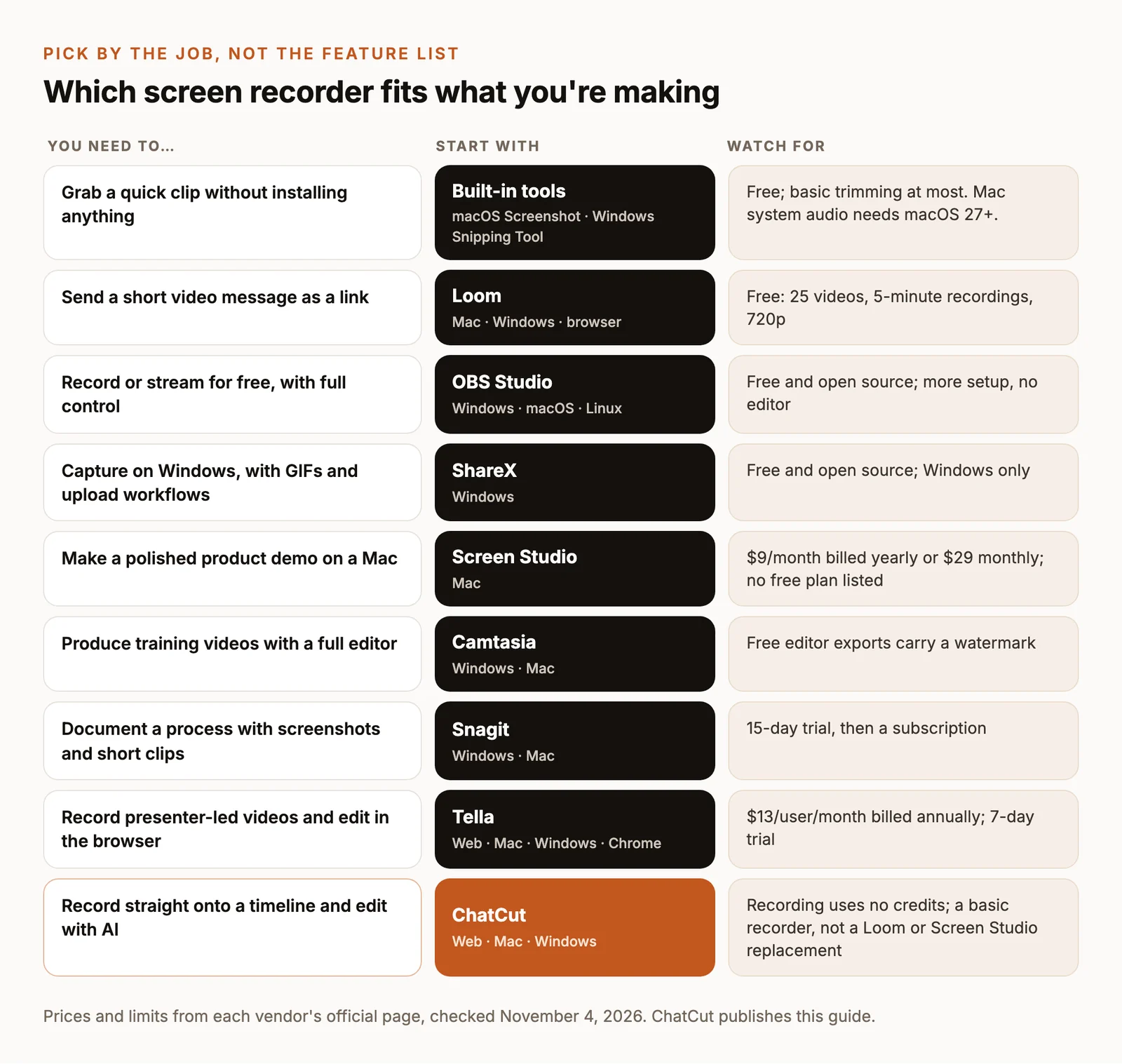
| Pick | Best for, and what it costs |
|---|---|
| Built-in tools (macOS, Windows 11) | Quick clips. Included with the system. |
| Loom (Mac, Windows, Chrome) | Video messages with a link. Free for 25 videos of up to 5 minutes at 720p; Business is $18/user/month. |
| OBS Studio (Windows, macOS, Linux) | Free capture and streaming. Free and open source. |
| ShareX (Windows) | Captures, GIFs and uploads. Free and open source. |
| Screen Studio (Mac) | Polished product demos. No free plan listed; $9/month billed yearly or $29 monthly. |
| Camtasia (Windows, Mac) | Training videos. Free editor exports carry a watermark; paid plans are annual. |
| Snagit (Windows, Mac) | Documentation. 15-day trial, then a subscription. |
| Tella (web, Mac, Windows) | Presenter-led videos. 7-day trial; $13/user/month billed annually. |
| ChatCut (web, Mac, Windows) | Recording you’ll edit with AI. Recording and editing on the Free plan; paid plans from $25/month. |
How we chose
We started from the questions that actually separate these tools, then checked each one’s official product, pricing and help pages on November 4, 2026:
- Platform. Which operating systems it runs on, including Linux and browser-based options.
- Audio. Whether the vendor documents microphone and system-audio capture. On a Mac, system audio depends on the macOS version.
- Output. A video file on your computer, a share link, or both.
- Editing. What you can fix after recording without opening another app.
- Real cost. What the free version allows (built in, a free plan, a trial or a watermark) and how paid plans are billed.
We didn’t run a side-by-side recording test for this article, so we don’t rank capture quality, performance or reliability. Where a vendor doesn’t publish a limit, we say it isn’t listed instead of calling it unlimited. Descript, CleanShot X and Bandicam are also popular; we kept the list to one strong pick per job.
ChatCut makes one of the tools on this list. We judged it by the same five questions and say plainly where another recorder is the better choice.
The best screen recorders by use case
Built-in tools: best for quick clips
Both major desktop systems already include a screen recorder, and for a one-minute clip that you won’t edit much, they’re the fastest option.
On a Mac, press Shift-Command-5 to open the Screenshot toolbar, then choose Record Entire Screen or Record Selected Portion. Under Options, pick a microphone, show mouse clicks or set a timer. Click Record, and stop with the Stop button in the menu bar or Command-Control-Esc. The file lands on your desktop by default. QuickTime Player’s File → New Screen Recording opens the same controls. Recording the Mac’s own sound requires macOS 27 or later, where Options adds Include System Audio (Apple’s guide).
On Windows 11, press Windows + Shift + R, select the area to record and choose Start. Toggle the microphone if you want to narrate. Choose Stop, and Snipping Tool saves the video to your Screen Recordings folder (Microsoft’s guide).
- Choose them if you need a clip right now and will send it more or less as recorded.
- Skip them if you need a share link, editing beyond a basic trim, or the Mac’s system audio on macOS 26 or earlier.
- Cost: included with macOS and with Windows 11.
Loom: best for video messages
Loom records your screen, your camera bubble or both, and gives you a link to share as soon as you stop. Viewers watch in the browser, so it replaces a meeting or a long written explanation rather than producing a video file to edit.
- Choose it if teammates or customers will watch in a browser and you care more about a fast link than a polished cut.
- Skip it if you need recordings longer than five minutes on the free plan, or a video file to edit rather than a link.
- Platforms: Mac, Windows and a Chrome extension.
- Cost: Starter is free for 25 videos per person, with screen recordings up to five minutes and video quality up to 720p. Business is $18 per user per month and removes the video and length caps; uploading and downloading videos is listed as a Business feature. Business + AI is $24 per user per month.
OBS Studio: best free recorder for full control
OBS Studio is free, open-source software for recording and live streaming. You build scenes from sources such as a window, a webcam, images, text and browser windows, switch between scenes, and mix audio with per-source filters such as noise suppression and gain.
- Choose it if you want long recordings, several sources in one frame, or live streaming, and you don’t mind spending time on setup.
- Skip it if you want to fix the recording in the same app. OBS records and streams; trimming and captions happen in an editor.
- Platforms: Windows 10 and 11, macOS 13 or later, and Linux.
- Cost: free, with no paid version, so there’s no watermark tier to upgrade out of.
ShareX: best free capture tool for Windows
ShareX is a free, open-source capture tool for Windows. It records the screen as video or as a GIF, takes screenshots (including scrolling captures), and runs after-capture tasks such as uploading to a destination you configure. It has no ads and needs no account.
- Choose it if you capture on Windows several times a day and want GIFs and quick uploads for docs, tickets or chat.
- Skip it if you’re on a Mac, or if the recording is the start of a narrated tutorial that you’ll edit anyway.
- Platforms: Windows only.
- Cost: free.
Screen Studio: best for polished Mac demos
Screen Studio is a Mac recorder built for product demos. It adds zooms, smooths cursor movement, shows click effects and motion blur, and lets you edit by transcript, shorten filler words and pauses, and add captions. Exports go up to 4K at 60 fps, and you can share by link.
- Choose it if you record software demos or launch videos on a Mac and want them to look finished without a separate editor.
- Skip it if you use Windows or want a free tool; the pricing page lists no free plan.
- Platforms: macOS, with 13.1 or later recommended. Some newer features need Apple silicon and a recent macOS version.
- Cost: $9 a month on the yearly plan, or $29 month to month. Every plan includes every feature.
Camtasia: best for training videos
Camtasia records your screen, camera, microphone and system audio as separate tracks, along with cursor data, so you can fix the audio and restyle or reposition the cursor after recording. It pairs that with a full timeline editor for training, onboarding and how-to videos.
- Choose it if you produce course or training videos that need callouts, cursor effects and careful editing.
- Skip it if you only need quick clips or a share link; the editor is more than that job needs.
- Platforms: Windows 10 (64-bit, version 20H2) or later, and macOS 14.0 or later.
- Cost: the Camtasia Editor is a free download with every editing feature, but exports carry a watermark until you buy an Essentials, Create or Pro plan. The entry Starter plan still includes the watermarked editor. Plans are billed yearly, and TechSmith’s store shows prices for your region.
Snagit: best for documentation
Snagit is TechSmith’s tool for screenshots and short screen recordings, built around documentation. Step Capture builds a guide as you click through a process, Smart Redact hides sensitive information, and scrolling capture grabs a whole page in one image.
- Choose it if you write help articles, SOPs or bug reports and mostly need annotated images with an occasional clip.
- Skip it if video is the main deliverable; Camtasia or Screen Studio fit that job better.
- Platforms: Windows and Mac.
- Cost: a fully functional 15-day trial, then a subscription.
Tella: best for presenter-led videos
Tella records in the browser or with its Mac and Windows apps, then lets you edit, share by link or embed. Recordings go up to 4K, with clips up to six hours each, and transcripts cover 106 languages. Its Tella Agent edits from a chat, and Auto Capture, in beta, has an AI agent record a web page for you.
- Choose it if you record lessons, product updates or explainers with your face on screen and want editing and hosting in one place.
- Skip it if you want a free plan beyond the trial.
- Platforms: web app, macOS and Windows recorders, and a Chrome extension.
- Cost: Pro is $13 per user per month billed annually, with 4K export and 4,500 Agent credits a month; Premium is $19. A 7-day free trial includes 4,500 credits, and Auto Capture needs a paid plan.
ChatCut: best for recording straight into an editor
ChatCut is an AI video editor with a recorder built into its timeline. Open the chevron on the Record control, choose Screen under Recording settings, pick a microphone and the 3-second countdown if you want them, then select Record and choose a screen or window in the system picker. When you select Stop recording, the take is saved to My Assets and placed on a video track at the playhead, ready to cut. The same controls work in the web app and in ChatCut Desktop, and recording itself uses no credits (recording docs).
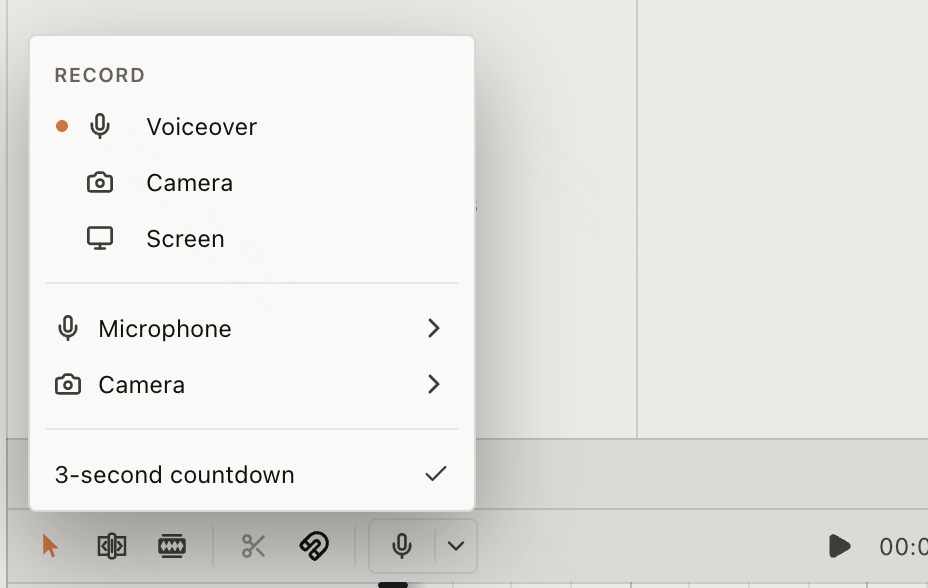
What sets it apart from the rest of this list is what comes next. The recording is already in an editor with a transcript, captions and an AI agent you can ask to cut it, so there’s no export-and-import step between capture and editing.
- Choose it if you’ll edit the recording anyway, with trims, captions, zooms or narration, and want to skip moving files between apps.
- Skip it if you need your face and screen captured in one take. ChatCut records Camera and Screen as separate modes and can’t switch during a take; Loom and Camtasia both record screen and webcam together. Loom is also better for instant share links, OBS for streaming, and Screen Studio does more at capture time for Mac demos.
- Platforms: the web app in a desktop browser, and ChatCut Desktop for macOS 13 or later (Apple silicon or Intel) and Windows 10 or later (x64). There’s no Linux desktop app.
- Cost: the Free plan covers recording, editing and transcription. Desktop exports render locally at up to 4K; web and cloud exports go up to 1080p, and the Free plan includes 60 minutes of those in total. Paid plans start at $25 a month or $252 a year for 100 generation credits a month.
Which should you choose on Windows or Mac?
On Windows, start with Snipping Tool (Windows + Shift + R) for a quick clip. Use ShareX if you capture all day and want GIFs, OBS Studio for long recordings, several sources or streaming, and Camtasia when the recording becomes a training video.
On a Mac, start with the Screenshot toolbar (Shift-Command-5). Use Screen Studio for polished product demos, OBS Studio for free advanced capture, and Camtasia for training. If you need the Mac’s own sound on macOS 26 or earlier, pick a recorder that documents system-audio capture, such as Camtasia.
On either, or in a browser, Loom is the quickest way to send a video message, Tella suits presenter-led videos, and ChatCut fits when the recording is raw material for an edit.
What happens after you press Stop?
A raw screen recording is rarely the video you send. Most need the same four passes: cut the mistakes and dead time, hide anything private on screen, make small text readable with zooms or crops, and add captions or narration. Our guides to removing silences and filler words and adding subtitles cover the first and last passes in detail.
In ChatCut, a take from the Record button is already on the timeline, and a recording from any other tool goes in through My Assets → Upload. From there you can cut by transcript yourself or ask the AI for a first pass:
Then add captions, so the walkthrough still works for viewers who watch with the sound off. Screen recordings usually have small text and fast clicks; captions in two short lines, placed clear of the area you’re demonstrating, keep the narration readable on a phone.
Questions about screen recording software
What is the best free screen recording software?
Which free screen recorders don't add a watermark?
What is the best screen recorder for Windows?
How do I record internal audio on a Mac?
What's the best way to record your screen on Windows?
Whichever recorder you pick, try it on one short take first: record a minute with your real microphone and screen, open the file, and check the sound, the text size and the length before you record the full video.