Yes, ChatGPT can analyze videos, within limits OpenAI states itself. You can attach a video file to a chat on Free and paid plans, and ChatGPT may use tools to read it, but OpenAI warns that it “may not analyze the entire video or accurately interpret its audio.” A YouTube link pasted into an ordinary chat isn’t documented as reaching the video at all. ChatGPT’s browser side chat can read a captioned YouTube video’s timestamped transcript, and Advanced voice on iPhone and Android can look through your camera live for eligible subscribers.
This guide sorts those routes by what ChatGPT actually receives, then shows a transcript-and-screenshot method that gives you answers you can check. Every capability below was checked against OpenAI’s help pages on November 4, 2026. Where OpenAI doesn’t document something, we say so instead of guessing.
Key takeaways
- Uploading a video works, but OpenAI doesn’t say how much of the picture or sound ChatGPT inspects, and publishes no length, size or format limit for video.
- A pasted YouTube link is not a documented way to give ChatGPT a video. Use side chat in a supported browser, or copy YouTube’s transcript yourself.
- For an analysis you can verify, give ChatGPT a transcript with timestamps plus screenshots of the moments that matter, and ask it to cite both.
- Analyzing a video is not editing it. Changing the footage needs a connected editor, which is a separate question.
Can ChatGPT analyze videos? What OpenAI documents
“Analyze” covers several jobs: summarizing what was said, finding a moment, reading text on screen, judging a presenter’s delivery. Which of those ChatGPT can do depends less on the model you pick than on what you hand it. A transcript carries the words and no picture; a screenshot carries one frame and no sound; an uploaded file carries both, but only as far as ChatGPT’s tools read it.
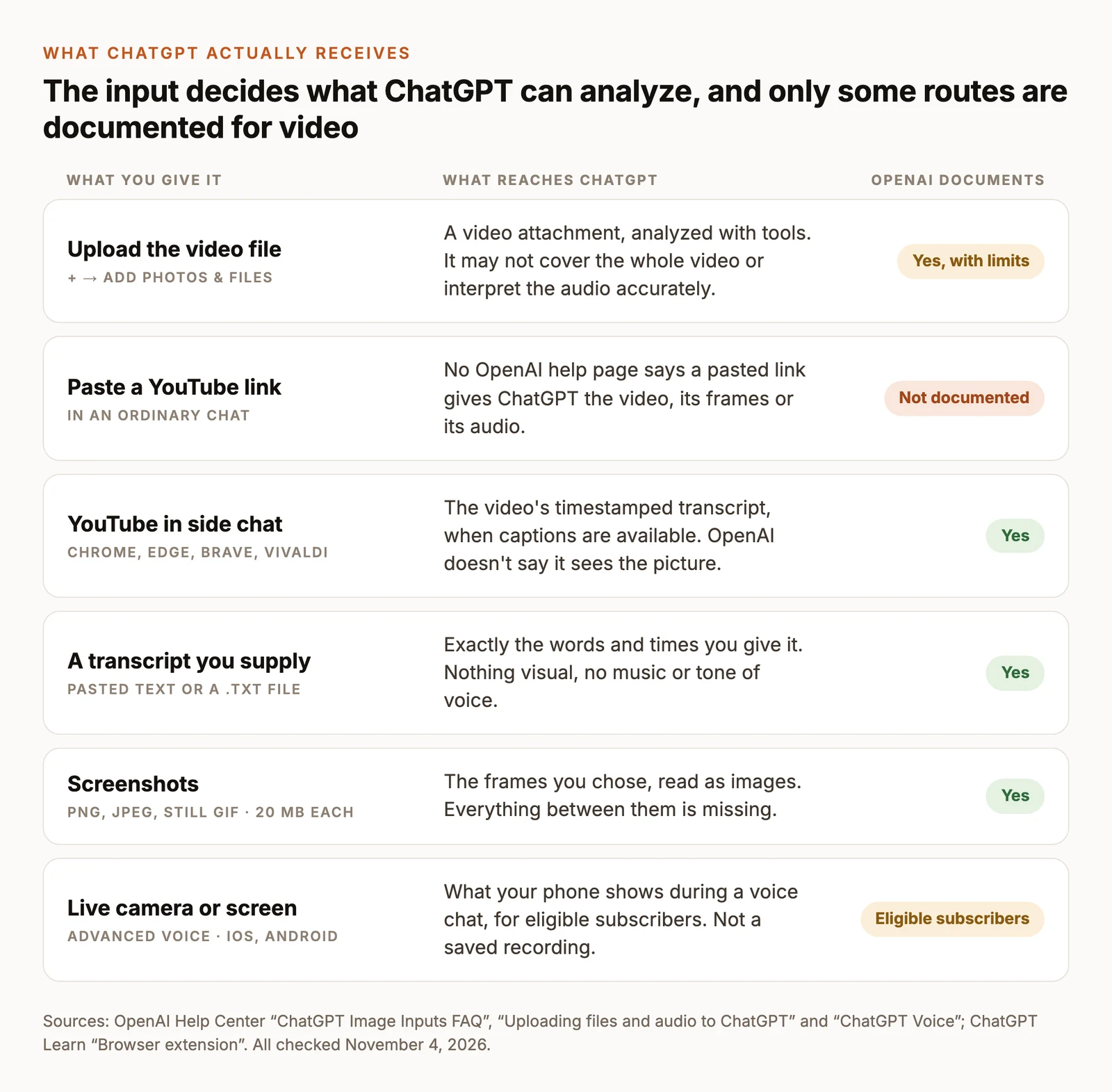
Uploaded video files
OpenAI’s Image Inputs FAQ says ChatGPT accepts video files as attachments through supported upload methods, including on the Free plan, and that availability varies by platform, upload method and account. The attach menu is + → Add photos & files, the one OpenAI documents for images; our step-by-step upload guide covers each app and what to do when the upload fails. Every video counts toward your plan’s file-upload limits: up to 80 files every three hours, or three uploads a day on Free, and OpenAI may lower both at busy times.
The same FAQ says ChatGPT may use tools to analyze an uploaded video, and that the result can be incomplete or inaccurate. That’s the whole of OpenAI’s description. It doesn’t say how many frames are inspected, whether the soundtrack is transcribed on your plan or in your app, which video formats are accepted, or the longest or largest file it will take. The 512 MB figure on OpenAI’s upload page applies to documents and audio files, not to video.
A published third-party test shows why the gap matters. Atlas Cloud uploaded a 30-second clip to the ChatGPT Windows app on a Free account on October 26, 2026. They report that ChatGPT pulled one frame per second into a contact sheet, found both camera cuts, missed a note shown for 0.4 seconds, and couldn’t transcribe a spoken sentence. That’s one run on one account, not a specification for yours. It does illustrate OpenAI’s warning: a video can be summarized without being fully seen or heard.
Audio files on paid plans
When everything you need is in the speech, paid plans have a better-documented route. OpenAI lets paid subscribers and workspaces upload audio files, including WAV, MP3, M4A, FLAC, AAC and audio-only MP4, up to 512 MB, and ask for a transcript. The Free plan can’t upload audio. An MP4 that contains video isn’t accepted as an audio upload, so export the soundtrack as its own file first. OpenAI adds that transcripts may contain errors and that speaker labels may be unreliable.
YouTube links
No OpenAI help page says that a YouTube URL pasted into an ordinary chat gives ChatGPT the video, its frames or its audio. In the same Atlas Cloud test, a pasted link returned no transcript and no audio. If you try a link anyway, ask ChatGPT what it retrieved before you trust a summary. The documented YouTube route is side chat, covered in the next section.
Live camera and screen sharing
ChatGPT Voice has a live video option, but only in Advanced voice, only in the iOS and Android apps, and only for eligible subscribers. Switch to it under Settings → Voice, start a voice conversation, then tap the camera button to share what your phone sees, or choose ••• → Share Screen. The newer Live voice option doesn’t support video or screen sharing. This suits a question like “what is this part called?” in the moment. It doesn’t analyze a saved recording, and there’s no timeline to go back through.
Can ChatGPT watch YouTube videos?
It can read them, which isn’t the same as watching them. OpenAI documents one way for ChatGPT to reach a YouTube video’s content, and YouTube itself provides another that works anywhere.
Use ChatGPT’s side chat in your browser
The ChatGPT browser extension adds a side chat to Chrome, Edge, Brave and Vivaldi (Opera gets the extension but not side chat). You set it up from the ChatGPT desktop app:
- In the desktop app, open Settings → Computer Use, choose your browser, select Install and add the ChatGPT extension from the browser’s store. The browser shows Manage once it’s connected.
- Open the YouTube video in that browser.
- Open ChatGPT from the browser toolbar or the Extensions menu. On a Mac, Cmd+Shift+Period also opens it.
- Ask your question.
When the video has captions, ChatGPT can use its timestamped transcript to explain, summarize or answer questions. OpenAI doesn’t describe what happens without captions, and doesn’t say side chat sees the picture. Browser availability depends on rollout and workspace settings. OpenAI also asks you to treat video transcripts as untrusted context, the same as any web page you bring into a chat.
Copy the transcript yourself
This route works in any browser and on any ChatGPT plan, because what you send is plain text:
- On the video’s YouTube page, open the description and click Show transcript. YouTube Help notes this appears for videos that have captions.
- Select the lines you need, copy them, and paste them into ChatGPT. For a long video, paste the text into a .txt file and attach it; ChatGPT accepts text files up to 2 million tokens.
- Tell ChatGPT what the text is: the video’s title, the speaker, and whether the captions were auto-generated.
Clicking a line in YouTube’s transcript jumps the video to that moment, which makes checking ChatGPT’s answer quick. Auto-generated captions can mishear names and numbers, so check those first.
How to get an analysis you can check
A useful video analysis is one where every point leads back to a moment you can play. The method below works with any of the text routes above, and it’s how we’d use ChatGPT for video analysis of an interview, a lecture or a product demo.
1. Start from text with timestamps
Give ChatGPT a transcript that carries its times, whether that’s YouTube’s, a subtitle file from an editor or your own notes. Without times in the source, any timestamps ChatGPT returns are guesses. For a long recording, send it in labelled sections (“Part 2 of 4, 15:00 to 30:00”) and ask for an analysis of each before a summary of all of them.
2. Add screenshots for anything visual
If the question depends on a slide, a chart, a product screen or a gesture, capture those frames as PNG or JPEG files, up to 20 MB each. Put the time in your message (“Image 1 is at 4:12”), not only in the file name: OpenAI notes that ChatGPT doesn’t read original file names or metadata. Keep text in the frame large enough to read, and crop out what doesn’t matter.
3. Ask for evidence, not impressions
Paste this into ChatGPT with your transcript and screenshots attached:
The last line is there on purpose. A transcript can’t tell you what was on screen, what music played or how the speaker sounded, and an answer that admits that is easier to trust than one that fills the gap.
4. Check the claims you’d act on
Open the video at the times ChatGPT cites and check the points you plan to use: quotes, names, numbers and anything said to be on screen. Treat a point with no timestamp or quote as ChatGPT’s inference, not the video’s content.
Test uploads on your own account first
If you’d rather upload the video itself, find out what your account does before you rely on it. OpenAI says results vary by platform, upload method and account, so a short test tells you more than any article can.
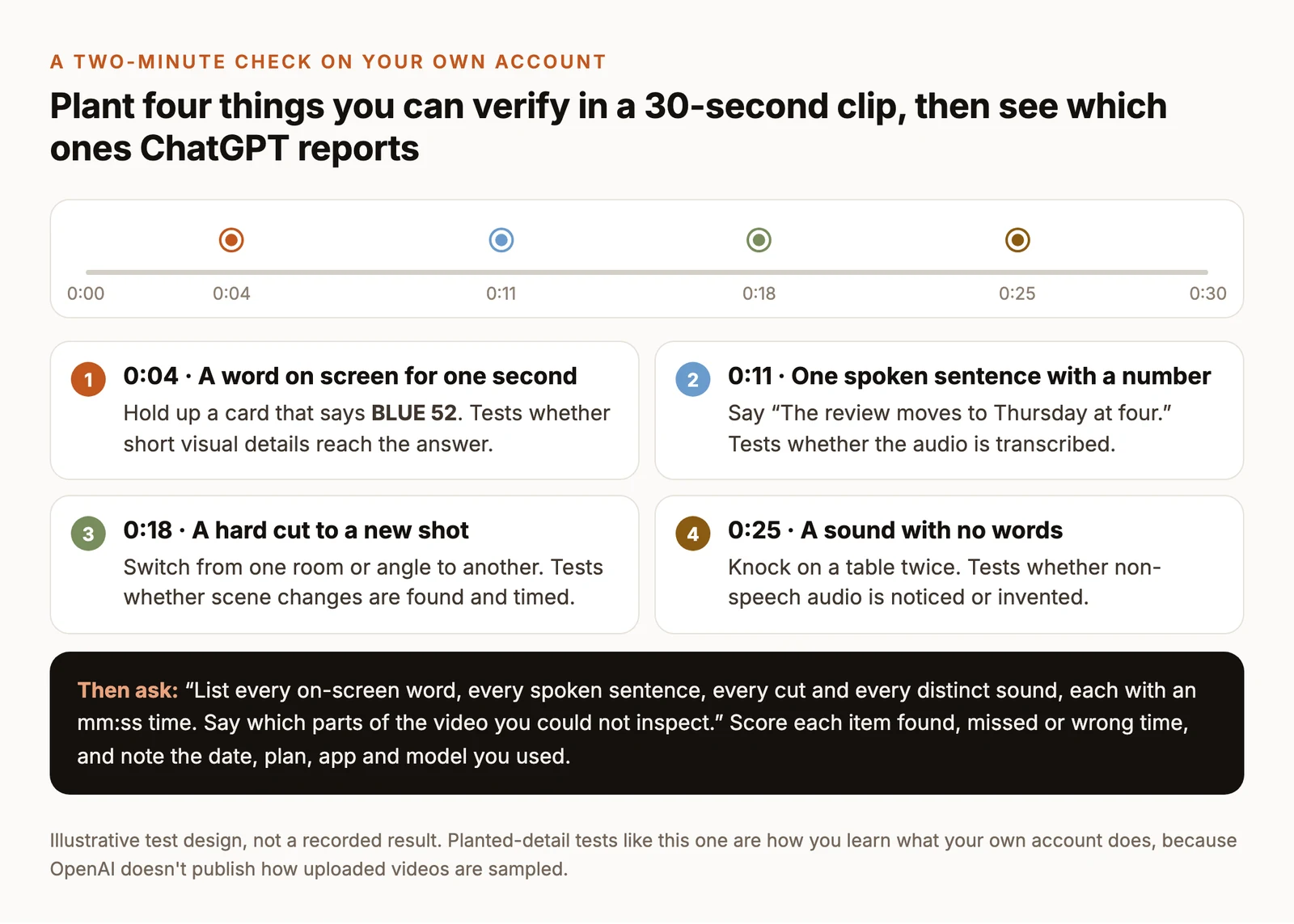
Run it again when you change apps or plans. If your account misses the spoken sentence, it isn’t reliably reading the soundtrack, and a transcript is the safer input.
Turn the analysis into an edit with ChatCut
Analysis is often the first half of a job: you want the three quotes for a short, or the stretch to cut from a long recording. A ChatGPT answer stops at a list of times, and someone still has to find those moments and cut them. ChatCut keeps the transcript attached to the footage, so each line you check is also a place you can cut.
- Import the recording. In ChatCut Desktop or the web app, open My Assets → Upload → Files…, wait for the card to finish processing, and drag it onto the Timeline. ChatCut transcribes the speech; uploading and transcription don’t use credits.
- Check the transcript against the picture. Open Transcript (or Workspace → Transcript if it’s hidden) and choose the track with the speech. Clicking a word moves the Viewer to that moment. Correct misheard names with Edit text. Selecting words and pressing Delete cuts that footage, so it isn’t a proofreading tool; the Transcript and Captions guide explains the difference.
- Export text for ChatGPT. Turn captions on, wait until the caption track finishes transcribing, then choose Export → Subtitles. SubRip (.srt) keeps a start and end time on every caption; plain text (.txt) is the words only. ChatGPT’s upload list names TXT but not SRT, so paste the SRT’s contents into the chat or save a copy with a .txt extension. The times follow your timeline, so they match the original only if you haven’t cut it yet. See Export Video, Audio, and Subtitles.
You can also skip the round trip and ask ChatCut’s Agent, which works from the same transcript. This prompt keeps the timeline unchanged until you approve the list:
When the list looks right, the Long Video to Shorts Skill does the cutting. You give it the recording, choose the number of clips, their length, 9:16 or 16:9, and packaging such as captions and title text, and ChatCut plans the edits and polishes each clip.
Messages to ChatCut’s built-in Agent, including Skill runs, use ChatCut credits; transcription, manual edits and export don’t. For more on clipping a long recording, see turning long videos into shorts.
Limits to know before you rely on it
- No published video limits. OpenAI doesn’t document a maximum length, file size, format list or frame sampling rate for video attachments. Test with your own account and keep files to the part you’re asking about.
- Upload counts. Each video uses one of your file uploads: up to 80 every three hours, or three a day on Free. Failed attempts can sometimes count too.
- Transcripts have blind spots. A transcript-based analysis can’t see slides, gestures, on-screen text, music or tone of voice unless you supply them. Auto-generated captions make mistakes, and names and numbers are where they matter most.
- Captions decide the YouTube routes. Both Show transcript and side chat depend on the video having captions.
- ChatGPT’s account of itself isn’t proof. Ask what it inspected, but check the answer against the video; a description of its own process can be wrong.
- Privacy. How uploaded content may be used depends on your plan and data controls. Upload only footage you have the right to share.
Method and disclosure
ChatCut publishes this guide and makes the editor described in its last section. We wrote it from OpenAI’s Help Center (“ChatGPT Image Inputs FAQ”, “Uploading files and audio to ChatGPT”, “ChatGPT Voice”), the ChatGPT Learn page on the browser extension and YouTube Help, all checked on November 4, 2026. We didn’t run our own ChatGPT upload test for this article: the Atlas Cloud result is theirs, and the planted-detail test above is a design for you to run. The demo clip comes from ChatCut’s Skill catalog and isn’t a recording of a ChatGPT session. ChatGPT changes often, so check the linked pages before you build a workflow on any of this.
Questions about ChatGPT and video analysis
Can ChatGPT watch a video and answer questions about it?
Can ChatGPT listen to a video?
How do I put a YouTube video into ChatGPT?
How long a video can ChatGPT analyze?
Can I show ChatGPT a video live?
Can ChatGPT edit the video after analyzing it?
Whichever route you use, the reliable pattern is the same: give ChatGPT text with times and the frames that matter, ask it to cite both, and keep the footage open beside the answer.